

AI Integration Quick Reference
AI Integration Quick Reference
| Field | Value |
|---|---|
| Package | @cometchat/chat-uikit-react |
| Framework | Next.js |
| Components | CometChatConversations, CometChatMessageHeader, CometChatMessageList, CometChatMessageComposer |
| Layout | Two-panel — conversation list (left) + message view (right) |
| Prerequisite | Complete Next.js Integration Steps 1–5 first |
| SSR | Dynamic import with ssr: false — CometChat requires browser APIs |
| Pattern | WhatsApp Web, Slack, Microsoft Teams |
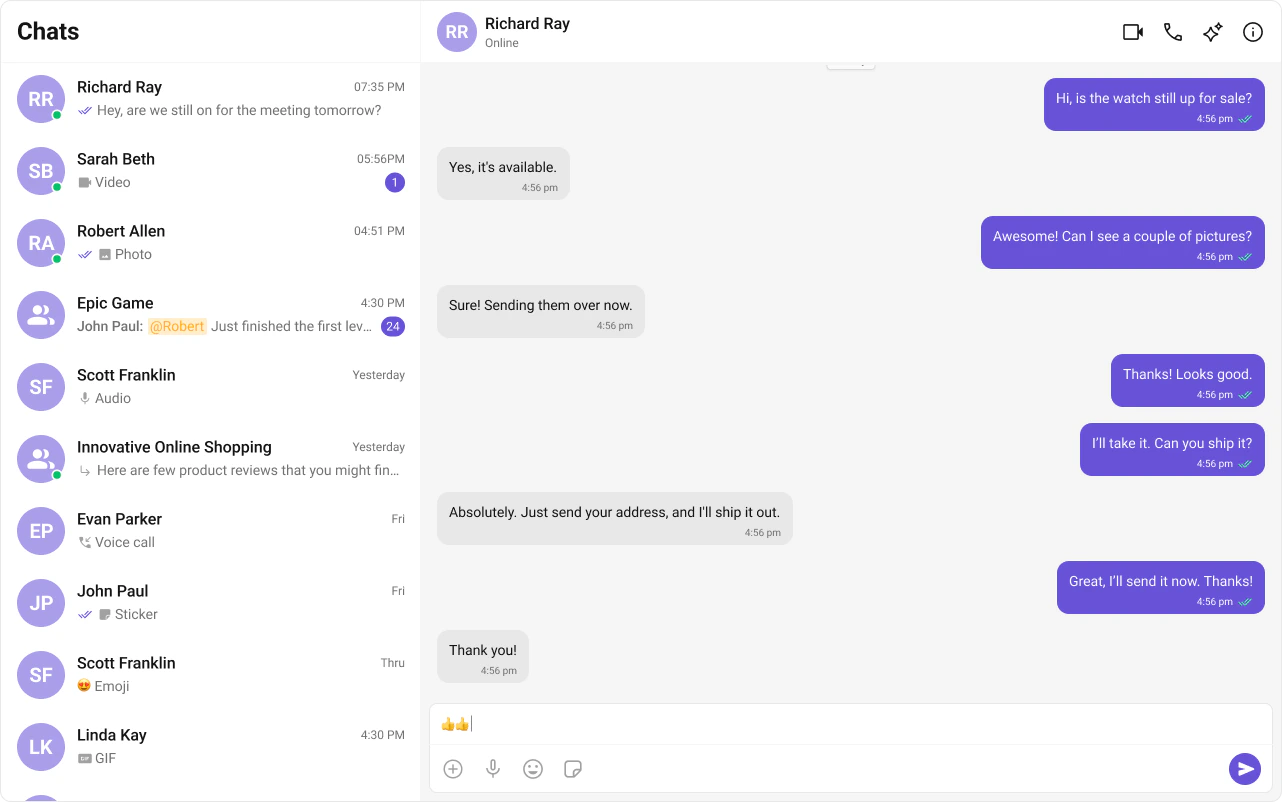

Fork the sandbox, insert your CometChat credentials (App ID, Region, Auth Key), and preview the UI in real time.
What You’re Building
Three sections working together:- Sidebar (conversation list) — shows all active conversations (users and groups)
- Message view — displays chat messages for the selected conversation in real time
- Message composer — text input with support for media, emojis, and reactions
Step 1 — Create the Sidebar Component
src
app
CometChatSelector
CometChatSelector.tsx
CometChatSelector.css
- TypeScript
- CSS
CometChatSelector.tsx
Step 2 — Create the CometChatNoSSR Component
This component handles init, login, and renders the full chat experience. It runs client-side only.src
app
CometChatNoSSR
CometChatNoSSR.tsx
CometChatNoSSR.css
- TypeScript
- CSS
CometChatNoSSR.tsx
Step 3 — Disable SSR in Your Page
Dynamically importCometChatNoSSR with ssr: false so it only loads client-side.
index.tsx
window, WebSocket, document). Setting ssr: false ensures the component only renders on the client, avoiding hydration errors.
Step 4 — Run the Project
- npm
- pnpm
- yarn
Next Steps
Theming
Customize colors, fonts, and styles to match your brand
Components Overview
Browse all prebuilt UI components
Next.js Integration
Back to the main setup guide
Core Features
Chat features included out of the box