

AI Integration Quick Reference
AI Integration Quick Reference
| Field | Value |
|---|---|
| Package | @cometchat/chat-uikit-react |
| Framework | Astro (with @astrojs/react islands) |
| Components | CometChatConversations, CometChatMessageHeader, CometChatMessageList, CometChatMessageComposer |
| Layout | Two-panel — conversation list (left) + message view (right) |
| Prerequisite | Complete Astro Integration Steps 1–5 first |
| SSR | client:only="react" directive — CometChat requires browser APIs |
| Pattern | WhatsApp Web, Slack, Microsoft Teams |
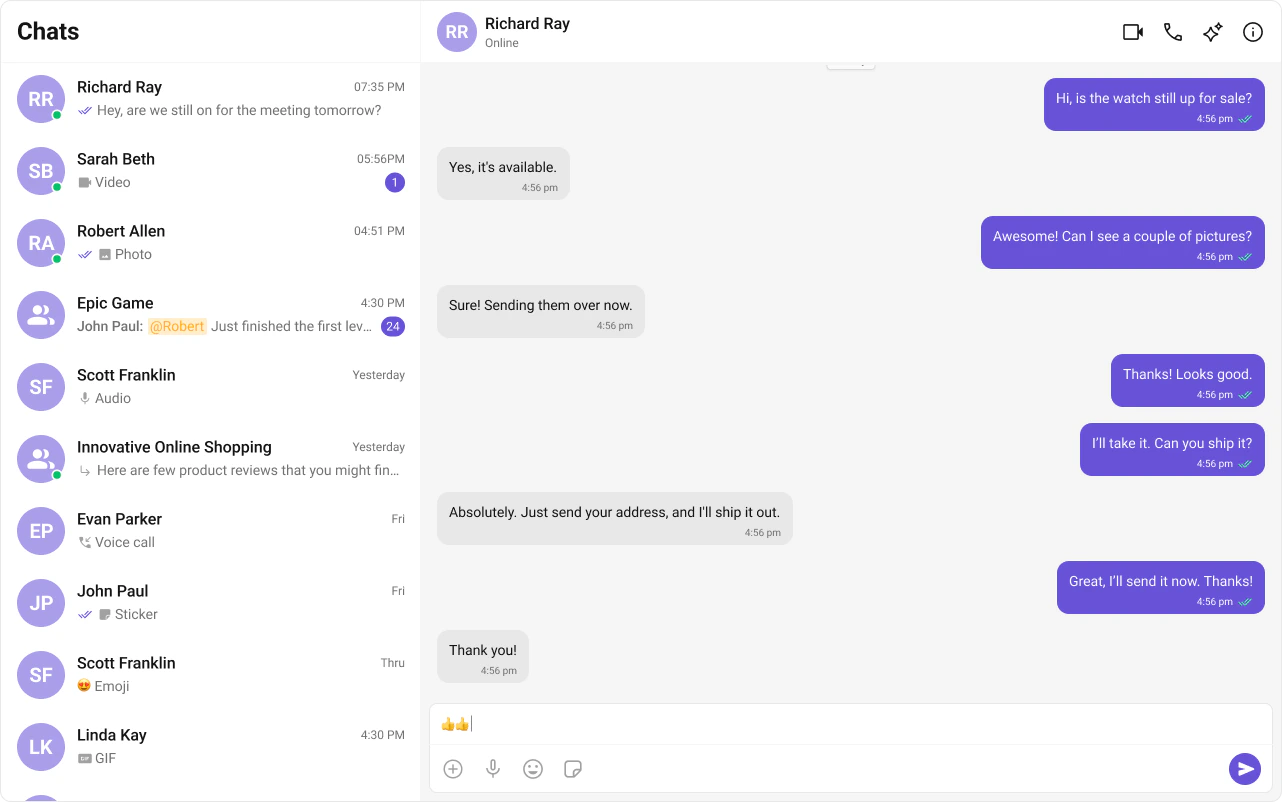
What You’re Building
Three sections working together:- Sidebar (conversation list) — shows all active conversations (users and groups)
- Message view — displays chat messages for the selected conversation in real time
- Message composer — text input with support for media, emojis, and reactions
Step 1 — Create the React Island
Create aChatApp component inside src/components/. This is a React island that handles init, login, and renders the full chat experience.
src
components
ChatApp.tsx
ChatApp.css
- TypeScript
- CSS
ChatApp.tsx
- Init and login happen inside
useEffect— the component only renders chat UI after login resolves. - When a conversation is tapped, the
UserorGroupis extracted from theConversationobject. selectedUser/selectedGroupstate drives which chat is displayed — pass eitheruserorgroupto the message components, never both.
Step 2 — Render the Astro Page
Import the island and hydrate it client-side usingclient:only="react".
src/pages/index.astro
client:only="react" directive ensures the component skips SSR entirely and only renders in the browser — required because CometChat needs window and WebSocket.
Step 3 — Run the Project
- npm
- pnpm
- yarn
Next Steps
Theming
Customize colors, fonts, and styles to match your brand
Components Overview
Browse all prebuilt UI components
Astro Integration
Back to the main setup guide
Core Features
Chat features included out of the box