FieldValue
Package@cometchat/chat-uikit-react
FrameworkAstro (with @astrojs/react islands)
ComponentsCometChatConversations, CometChatCallLogs, CometChatUsers, CometChatGroups, CometChatMessageHeader, CometChatMessageList, CometChatMessageComposer
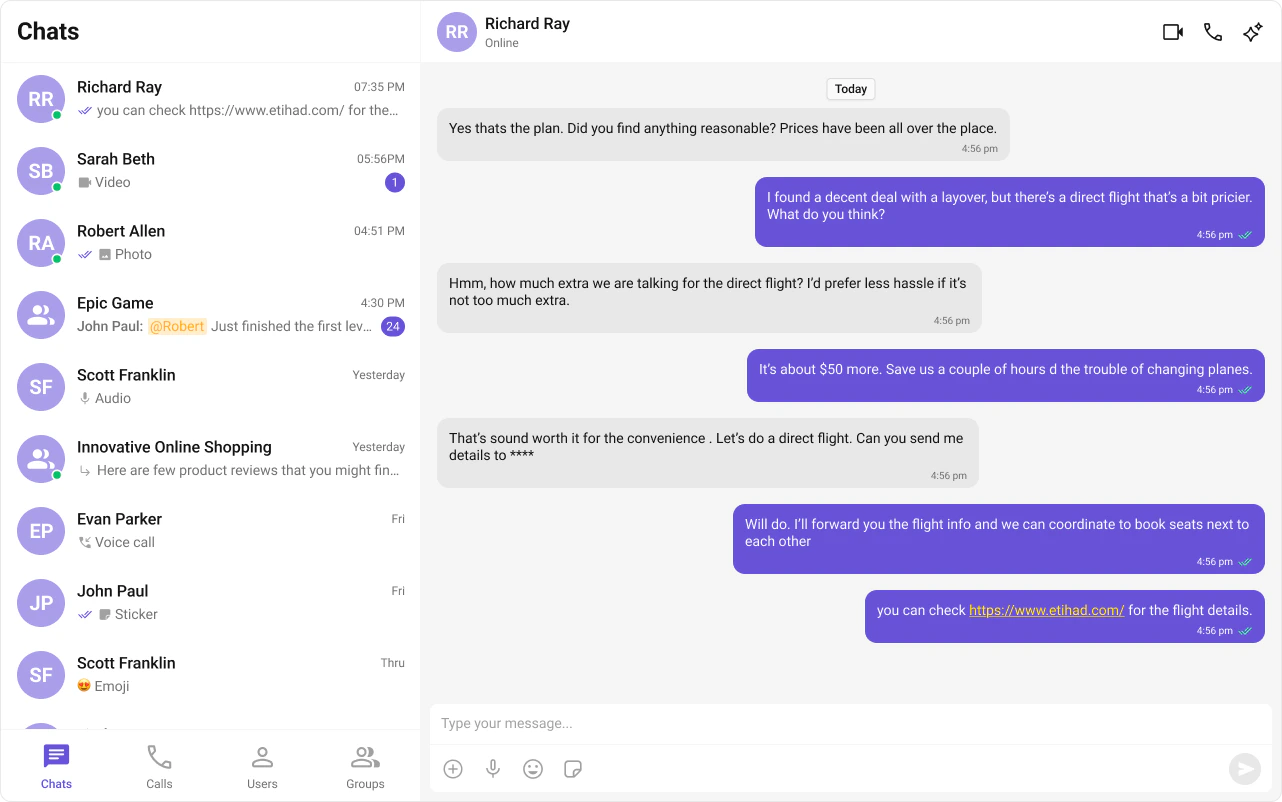
LayoutTabbed sidebar (Chats, Calls, Users, Groups) + message view
PrerequisiteComplete Astro Integration Steps 1–5 first
SSRclient:only="react" directive — CometChat requires browser APIs
PatternFull-featured messaging app with multiple sections
This guide builds a tabbed messaging UI — Chats, Calls, Users, and Groups tabs in the sidebar, with a message view on the right. Good for full-featured apps that need more than just conversations. This assumes you’ve already completed Astro Integration (project created, React added, UI Kit installed).

What You’re Building

Three sections working together:
  1. Tab bar — switches between Chats, Calls, Users, and Groups
  2. Sidebar — renders the list for the active tab
  3. Message view — header + messages + composer for the selected item

Step 1 — Create the Tab Component

src
components
CometChatTabs
CometChatTabs.tsx
CometChatTabs.css
Tab icons need to be placed in public/assets/. Download them from the CometChat UI Kit assets folder on GitHub.
public
assets
chats.svg
calls.svg
users.svg
groups.svg
CometChatTabs.tsx
import { useState } from "react";
import "./CometChatTabs.css";

const chatsIcon = "/assets/chats.svg";
const callsIcon = "/assets/calls.svg";
const usersIcon = "/assets/users.svg";
const groupsIcon = "/assets/groups.svg";

export const CometChatTabs = (props: {
  onTabClicked?: (tabItem: { name: string; icon?: string }) => void;
  activeTab?: string;
}) => {
  const { onTabClicked = () => {}, activeTab } = props;
  const [hoverTab, setHoverTab] = useState("");

  const tabItems = [
    { name: "CHATS", icon: chatsIcon },
    { name: "CALLS", icon: callsIcon },
    { name: "USERS", icon: usersIcon },
    { name: "GROUPS", icon: groupsIcon },
  ];

  return (
    <div className="cometchat-tab-component">
      {tabItems.map((tabItem) => {
        const isActive =
          activeTab === tabItem.name.toLowerCase() ||
          hoverTab === tabItem.name.toLowerCase();

        return (
          <div
            key={tabItem.name}
            className="cometchat-tab-component__tab"
            onClick={() => onTabClicked(tabItem)}
          >
            <div
              className={
                isActive
                  ? "cometchat-tab-component__tab-icon cometchat-tab-component__tab-icon-active"
                  : "cometchat-tab-component__tab-icon"
              }
              style={{
                WebkitMaskImage: `url(${tabItem.icon})`,
                maskImage: `url(${tabItem.icon})`,
              }}
              onMouseEnter={() => setHoverTab(tabItem.name.toLowerCase())}
              onMouseLeave={() => setHoverTab("")}
            />
            <div
              className={
                isActive
                  ? "cometchat-tab-component__tab-text cometchat-tab-component__tab-text-active"
                  : "cometchat-tab-component__tab-text"
              }
              onMouseEnter={() => setHoverTab(tabItem.name.toLowerCase())}
              onMouseLeave={() => setHoverTab("")}
            >
              {tabItem.name}
            </div>
          </div>
        );
      })}
    </div>
  );
};

Step 2 — Create the Sidebar Component

The sidebar renders the list for whichever tab is active, plus the tab bar at the bottom.
src
components
CometChatSelector
CometChatSelector.tsx
CometChatSelector.css
CometChatSelector.tsx
import { useEffect, useState } from "react";
import { Call, Conversation, Group, User, CometChat } from "@cometchat/chat-sdk-javascript";
import { CometChatCallLogs, CometChatConversations, CometChatGroups, CometChatUIKitLoginListener, CometChatUsers } from "@cometchat/chat-uikit-react";
import { CometChatTabs } from "../CometChatTabs/CometChatTabs";

interface SelectorProps {
  onSelectorItemClicked?: (input: User | Group | Conversation | Call, type: string) => void;
}

export const CometChatSelector = (props: SelectorProps) => {
  const { onSelectorItemClicked = () => {} } = props;
  const [loggedInUser, setLoggedInUser] = useState<CometChat.User | null>();
  const [activeItem, setActiveItem] = useState<Conversation | User | Group | Call | undefined>();
  const [activeTab, setActiveTab] = useState<string>("chats");

  useEffect(() => {
    const user = CometChatUIKitLoginListener.getLoggedInUser();
    setLoggedInUser(user);
  }, []);

  return (
    <>
      {loggedInUser && (
        <>
          {activeTab === "chats" && (
            <CometChatConversations
              activeConversation={activeItem instanceof CometChat.Conversation ? activeItem : undefined}
              onItemClick={(item) => { setActiveItem(item); onSelectorItemClicked(item, "updateSelectedItem"); }}
            />
          )}
          {activeTab === "calls" && (
            <CometChatCallLogs
              activeCall={activeItem as Call}
              onItemClick={(item: Call) => { setActiveItem(item); onSelectorItemClicked(item, "updateSelectedItemCall"); }}
            />
          )}
          {activeTab === "users" && (
            <CometChatUsers
              activeUser={activeItem as User}
              onItemClick={(item) => { setActiveItem(item); onSelectorItemClicked(item, "updateSelectedItemUser"); }}
            />
          )}
          {activeTab === "groups" && (
            <CometChatGroups
              activeGroup={activeItem as Group}
              onItemClick={(item) => { setActiveItem(item); onSelectorItemClicked(item, "updateSelectedItemGroup"); }}
            />
          )}
        </>
      )}
      <CometChatTabs activeTab={activeTab} onTabClicked={(item) => setActiveTab(item.name.toLowerCase())} />
    </>
  );
};
Key points:
  • The activeTab state drives which list component renders — CometChatConversations, CometChatCallLogs, CometChatUsers, or CometChatGroups.
  • Each list component passes its selection back to the parent via onSelectorItemClicked.
  • CometChatTabs renders at the bottom of the sidebar.

Step 3 — Create the TabbedChat Island

This component handles init, login, and renders the full tabbed chat experience. It runs client-side only via client:only="react".
src
components
TabbedChat.tsx
TabbedChat.css
TabbedChat.tsx
import { useEffect, useState } from "react";
import {
  CometChatMessageComposer,
  CometChatMessageHeader,
  CometChatMessageList,
  CometChatUIKit,
  UIKitSettingsBuilder,
} from "@cometchat/chat-uikit-react";
import { CometChat } from "@cometchat/chat-sdk-javascript";
import { CometChatSelector } from "./CometChatSelector/CometChatSelector";
import "@cometchat/chat-uikit-react/css-variables.css";
import "./TabbedChat.css";

const COMETCHAT_CONSTANTS = {
  APP_ID: "",    // Replace with your App ID
  REGION: "",    // Replace with your Region
  AUTH_KEY: "",  // Replace with your Auth Key (dev only)
};

const UID = "cometchat-uid-4"; // Replace with your actual UID

export default function TabbedChat() {
  const [user, setUser] = useState<CometChat.User | undefined>(undefined);
  const [selectedUser, setSelectedUser] = useState<CometChat.User | undefined>(undefined);
  const [selectedGroup, setSelectedGroup] = useState<CometChat.Group | undefined>(undefined);

  useEffect(() => {
    const UIKitSettings = new UIKitSettingsBuilder()
      .setAppId(COMETCHAT_CONSTANTS.APP_ID)
      .setRegion(COMETCHAT_CONSTANTS.REGION)
      .setAuthKey(COMETCHAT_CONSTANTS.AUTH_KEY)
      .subscribePresenceForAllUsers()
      .build();

    CometChatUIKit.init(UIKitSettings)
      .then(() => {
        console.log("Initialization completed successfully");
        CometChatUIKit.getLoggedinUser().then((loggedInUser) => {
          if (!loggedInUser) {
            CometChatUIKit.login(UID)
              .then((u) => {
                console.log("Login Successful", { u });
                setUser(u);
              })
              .catch((error) => console.error("Login failed", error));
          } else {
            console.log("Already logged-in", { loggedInUser });
            setUser(loggedInUser);
          }
        });
      })
      .catch((error) => console.error("Initialization failed", error));
  }, []);

  if (!user) return <div>Initializing Chat...</div>;

  return (
    <div className="conversations-with-messages">
      <div className="conversations-wrapper">
        <CometChatSelector
          onSelectorItemClicked={(activeItem) => {
            let item: any = activeItem;
            if (activeItem instanceof CometChat.Conversation) {
              item = activeItem.getConversationWith();
            }
            if (item instanceof CometChat.User) {
              setSelectedUser(item);
              setSelectedGroup(undefined);
            } else if (item instanceof CometChat.Group) {
              setSelectedUser(undefined);
              setSelectedGroup(item);
            } else {
              setSelectedUser(undefined);
              setSelectedGroup(undefined);
            }
          }}
        />
      </div>

      {selectedUser || selectedGroup ? (
        <div className="messages-wrapper">
          <CometChatMessageHeader user={selectedUser} group={selectedGroup} />
          <CometChatMessageList user={selectedUser} group={selectedGroup} />
          <CometChatMessageComposer user={selectedUser} group={selectedGroup} />
        </div>
      ) : (
        <div className="empty-conversation">Select a conversation to start chatting</div>
      )}
    </div>
  );
}
How it works:
  • Selections from any tab (Chats, Calls, Users, Groups) flow through the same onSelectorItemClicked callback.
  • Conversation items are unwrapped via getConversationWith() to extract the underlying User or Group.
  • Only one of selectedUser / selectedGroup is set at a time — the other is cleared.

Step 4 — Render the Astro Page

Import the island and hydrate it client-side using client:only="react".
src/pages/index.astro
---
import TabbedChat from "../components/TabbedChat.tsx";
import "../styles/globals.css";
---

<html lang="en">
  <head>
    <meta charset="utf-8" />
    <title>Tabbed Messaging UI</title>
  </head>
  <body>
    <TabbedChat client:only="react" />
  </body>
</html>
The client:only="react" directive ensures the component skips SSR entirely and only renders in the browser.

Step 5 — Run the Project

npm run dev
You should see the tab bar at the bottom of the sidebar. Switch between Chats, Calls, Users, and Groups — tapping any item loads the message view on the right.

Next Steps

Theming

Customize colors, fonts, and styles to match your brand

Components Overview

Browse all prebuilt UI components

Astro Integration

Back to the main setup guide

Core Features

Chat features included out of the box